You press the AP button. The airplane starts to turn. You think, “Nice.” Then it turns the other way. Your eyes go wide. Your hand hovers near the disconnect like it is a hot stove.
If this sounds familiar, you are not alone. A lot of pilots feel confident until the panel does something “unexpected.” Most of the time, the system did not fail. The pilot and the panel just were not on the same page. The FAA even has a name for this: mode confusion.
This guide is here to fix that. We will keep it simple. We will use clear steps. We will focus on the few errors that cause most surprises. We will also keep the goal realistic: you want calm control, not magic.
Today, we are talking about Cessna 172 autopilot basics and common mistakes in a way that feels easy to follow. Start with one idea: your autopilot follows modes, not mind-reading. Once you get that, the rest gets much easier.
Key Takeaways
Most problems happen because the pilot picks the wrong mode, forgets a setting (like the heading bug), or stops watching airspeed and trim. Use one simple habit: set the target, turn on the mode, then confirm what the panel shows. If anything looks wrong, disconnect and hand-fly first. Calm steps beat fast button pushing.
| Key takeaway | What to do | Why it helps |
| Mode check | Say the active mode out loud | Stops surprises |
| Bug and source | Set heading bug and correct nav source | Prevents wrong turns |
| Trend scan | Watch airspeed, climb/descent trend, and track | Catches issues early |
| Hands-ready rule | Keep a hand near disconnect in busy phases | Faster safety response |
| Simple practice | Learn one feature at a time in smooth air | Builds real confidence |
Not Every Cessna 172 Autopilot Is the Same
Here is a quick truth that saves stress: your Cessna 172 can look “normal” outside and still have a very different panel inside. That matters because each system has its own buttons, rules, and limits.
A flight school might have:
- A basic unit with simple roll and pitch help
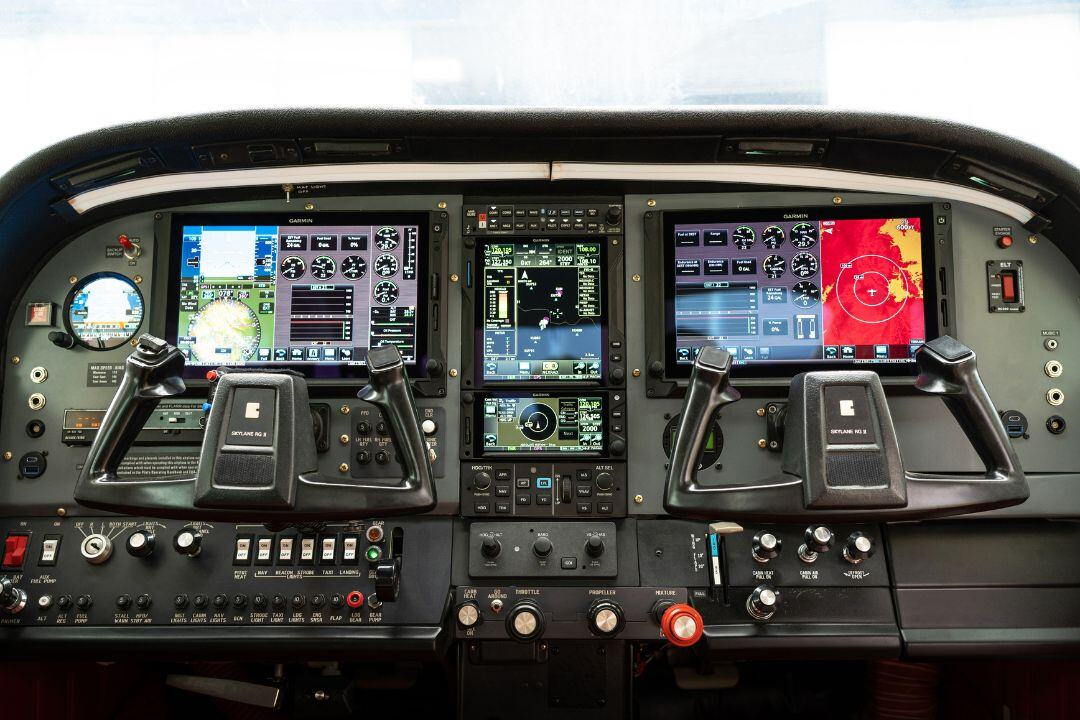
- A glass cockpit with a full screen setup like the G1000
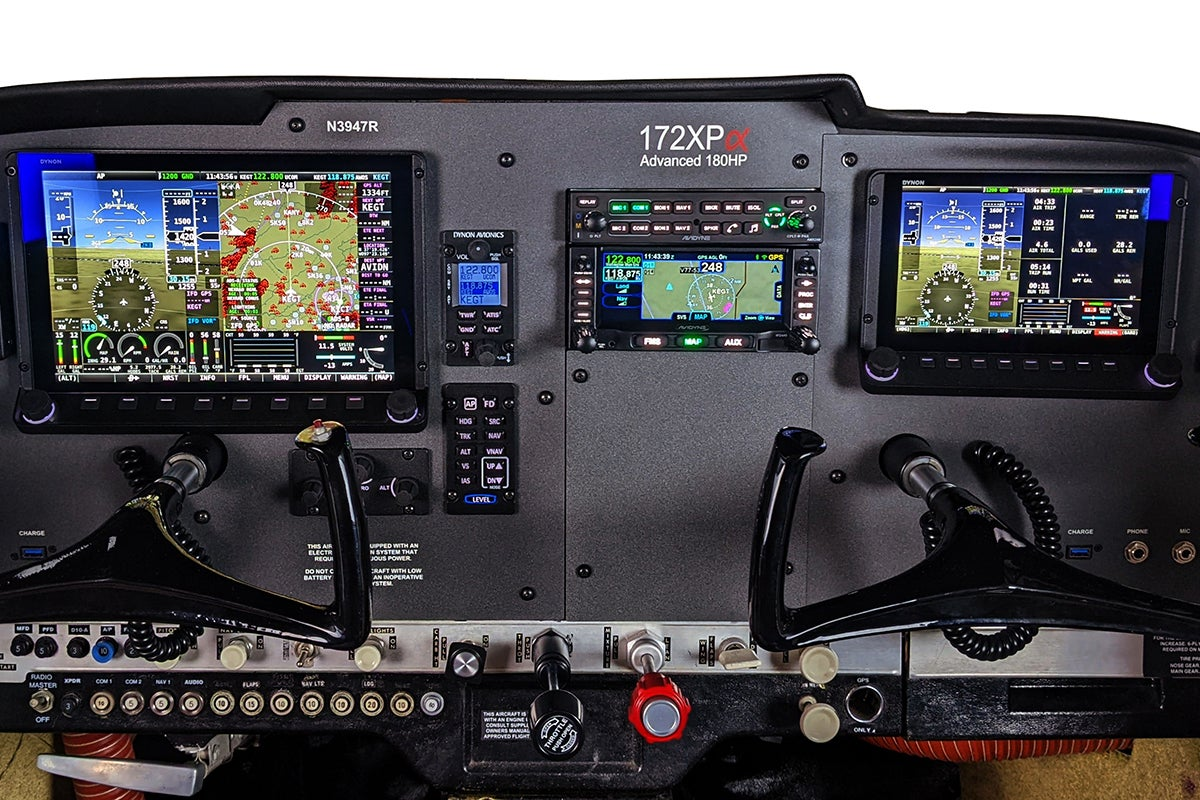
- A newer retrofit unit from Garmin
- An older unit with different labels and different behavior
All of these can show up in the same model line. They still fly like the same trainer, but the automation feels different.
What this means for you
You want two kinds of knowledge:
- General skills that work on most systems
- “This exact airplane” details from the book and panel
A good general skill is the “confirm step.” You do not guess. You look. You read the mode lights. You verify the nav source. You check the targets.
Then you learn the local rules for that exact aircraft. These rules sit in the POH or an add-on supplement. They can cover:
- The minimum and maximum speed for use
- A minimum height for use
- Limits for approach coupling
- Steps for a test on startup
- What to do if trim acts odd
A simple way to avoid the “wrong airplane” trap
Before engine start or taxi, do a fast panel check:
- Find the AP engage and disconnect buttons
- Find the heading bug knob
- Find the nav source selector
- Find the altitude preselect (if installed)
- Find the trim or trim interrupt switch (if installed)
If you fly rentals, do this every time. Panels change. Some airplanes go to maintenance and come back with updates. This is normal.
One more tip: ask your instructor a direct question before you launch. “What system is installed, and what are the top two things it does badly if I rush it?” That question gets useful answers fast, and it helps you fly with fewer surprises.
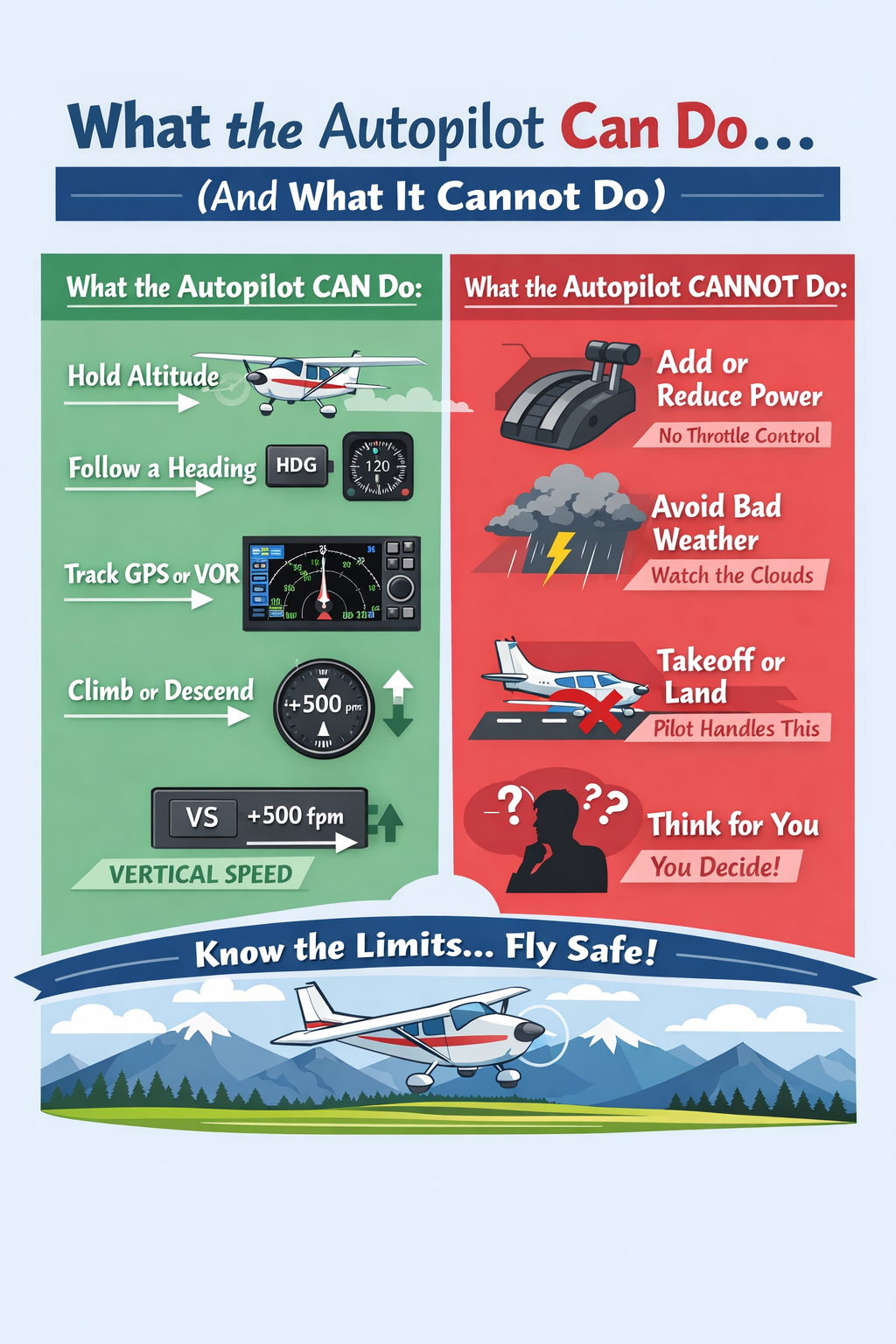
Let’s keep this clear: the AP is a helper. It is not a second pilot. It does some jobs very well, and it does some jobs very poorly.
What it can do well
Most light-airplane systems can:
- Keep wings level or hold a bank
- Hold a selected heading
- Track a course line
- Hold an altitude
- Climb or descend at a set rate
When it works well, it lowers workload. It also gives you time to set up radios, brief an approach, or read a checklist.
What it cannot do for you
It cannot:
- See other traffic
- Pick a safe speed
- Fix bad trim for you in every case
- Decide if you are stable for an approach
- Think ahead like a pilot
Some systems can guide pitch in a vertical sense, but you still must manage power and configuration. If you pull power back, the airplane slows. The AP may try to hold altitude anyway. That can raise the nose. That can lead to an ugly airspeed trend. This is a common “quiet” problem because it builds slowly.
The biggest “gotcha” in plain words
The AP does not protect you from every bad setup. If you ask it to climb too hard, it may chase that goal and you may lose speed. If you ask it to descend too fast, it may chase that goal and you may pick up speed.
That is why you should always scan:
- Airspeed
- Attitude trend
- Climb or descent trend
- Track trend
On many panels, the climb or descent rate shows as vertical speed. You do not need perfect numbers. You just need to notice the trend. If the trend looks wrong, fix the setup early.
Also, remember this: the AP does not remove your job. It changes your job. Your job becomes “set, confirm, monitor.” If you do those three things, the helper stays helpful.
The Big Question: “What Mode Am I In Right Now?”
This is the question that prevents most mistakes: “What mode is active right now?” If you can answer that fast, you can predict what the airplane will do.
What is a mode?
A mode is the job you give the system.
Example:
- “Hold this heading.”
- “Track this course.”
- “Hold this altitude.”
The panel shows the active job with lights or labels. Your eyes must check those labels after each button press.
Why mode errors happen
Mode errors happen for a few simple reasons:
- A pilot presses two buttons fast and misses a change
- A pilot thinks a mode armed, but it never captured
- A pilot forgets the nav source is wrong
- A pilot forgets the heading bug points somewhere else
You can prevent these with one calm pattern:
- Set the target (bug, course, altitude)
- Select the guidance source (GPS or VLOC)
- Engage the mode
- Confirm what is active on the panel
- Monitor the result for a few seconds
Keep “armed” and “active” simple
Some panels show two states:
- Armed means “ready to capture when it can.”
- Active means “doing the job now.”
If the system is armed, the airplane may keep doing the old job until capture happens. That is why the airplane may keep flying a heading for a bit, even after you press NAV. That can be normal.
A quick self-check you can use in real time
Ask two questions:
- “What is my lateral job?” (turning and tracking)
- “What is my vertical job?” (climb, descend, or hold)
If you can say both jobs out loud, you are ahead of the airplane. If you cannot, slow down and confirm before you do anything else.
And yes, it is okay to pause and look. The airplane likes calm pilots.
How to Use a Cessna 172 Autopilot Without Getting Tricked
This is the skill set people mean when they say autopilot basics. It is not fancy. It is steady steps and good checks. These basics work in most trainers.
Learn the Two Sides: Turning and Climbing
Think in two parts:
- Lateral control: heading and course tracking
- Pitch control: altitude, climbs, and descents
When you change one part, keep an eye on the other part. A turn can change workload. A climb can change speed. A descent can change speed. Your scan keeps you safe.
The Most Common Buttons in Simple Words
Buttons vary by system, but these ideas show up a lot:
- HDG: follows the heading bug
- NAV: follows the selected course source for navigation
- APR: helps capture and track an approach (when installed and set up right)
- ALT hold: holds the current altitude when engaged (some panels label it as alt)
- VS: sets a climb or descent rate
- Source selection: chooses GPS or VOR guidance for the course
Your job is simple: match the button to the goal. If the goal is “fly this heading,” HDG makes sense. If the goal is “track this course,” NAV makes sense.
The 6-Second Check Before You Hit “Autopilot”
Do this fast check every time you activate the system:
- Airplane is trimmed and stable
- Heading bug is set to the direction you want
- Correct nav source is selected
- Altitude target is sensible (if you have preselect)
- Mode annunciation matches your plan
- Hand is ready to disconnect
This takes about six seconds. It can save you a full minute of “Why is it doing that?”
Common Mistake #1: Heading Bug Left Behind?
This one is classic. You engage HDG, but the bug still points to an old heading.
Fix: set the bug first, then engage the mode.
Check: confirm the airplane turns the correct direction within a few seconds.
Common Mistake #2: Wrong Nav Source Chosen
You want to track a GPS course, but the source is set to VLOC. Or you want to track a VOR, but the source is still GPS.
Fix: select the source first, then arm NAV or APR.
Check: confirm the panel source label before you press NAV.
Common Mistake #3: Pressing Buttons Too Fast
Fast button presses can stack changes. Your eyes fall behind. Then the airplane “surprises” you.
Fix: press one button, pause, confirm the annunciation, then press the next button.
A small joke that is still true: the panel is not impressed by speed typing.
Common Mistake #4: Letting the Plane Get Slow
This is a big safety item. If you pull power back and try to hold altitude, the airplane can slow. The system may raise the nose to chase the goal. The stall warning does not care that the AP is on.
Fix: manage power and trim. Keep scanning airspeed.
Tip: if speed drops, lower the nose, add power, or disconnect and stabilize first.
Common Mistake #5: Fighting the Autopilot
Some pilots try to “help” by forcing the yoke. This can lead to bad trim loads and confusion.
Fix: if you disagree with what it is doing, disconnect. Then fly. Then reset.
What to Do If the Autopilot Acts Weird
Use this order:
- Disconnect
- Fly the airplane and stabilize
- Trim to relieve control pressure
- Re-check modes and targets
- Re-engage only after the airplane is calm
If it acts weird again, keep it off for that phase of flight. Simple and safe.
A Simple Practice Plan (So You Don’t Learn in a Scary Moment)
Learn one skill at a time in smooth air with an instructor:
- Wings level and heading hold
- Altitude hold
- Simple climbs and descents
- NAV tracking in cruise
- Approach coupling only after you feel solid
You can also practice flows at home. Microsoft Flight Simulator can help you learn the button order and the scan. It does not replace real training, but it can help your hands and eyes feel familiar with the steps.
How to Use a Cessna 172 Autopilot Without Getting Tricked
Let’s make this simple and calm. The autopilot can be a great helper, but it needs clear directions. If you give it mixed directions, it will still do something. It may not do what you expected.
These steps are the true autopilot basics. You can use them in almost any trainer. They help you stay ahead of the panel and ahead of the airplane.
Step 1: Start with a stable airplane
Before you turn anything on, make the airplane easy to control.
Do this first:
- Hold a steady airspeed.
- Hold a steady pitch and bank.
- Trim so you do not need constant pressure.
If you feel like you are “holding” the airplane in place, stop and fix that first. A stable setup gives the system a fair chance to do a good job.
Step 2: Know what system you have today
A Cessna 172 can have different panels. Some have a simple AP box. Some have a full glass setup like the G1000. Many glass setups use Garmin equipment, but the exact buttons can still vary.
So use one clean habit: find the “AP,” “disconnect,” and the main control knobs before you need them. Do that on the ground. It keeps you calm in the air.
Step 3: Give one clear job at a time
Most trouble starts when a pilot gives two jobs at once, then forgets which job is active.
Use this order:
- Set the target.
- Pick the guidance source.
- Turn on the job.
- Confirm it on the screen or lights.
- Watch the result for a few seconds.
That is it. You do not need fast hands. You need clean steps.
Step 4: Split the work into “turning” and “climbing”
Think in two parts:
A) Lateral control (turning)
- The system can hold wings level.
- It can follow a heading bug.
- It can track a course line for navigation.
B) Vertical control (climb and descent)
- The system can hold altitude.
- It can climb or descend using a set rate.
- It may use vertical speed as the “rate” target.
When you change one part, keep an eye on the other part. For example, a big climb can reduce airspeed if you do not add power. The system does not “add power” for you.
Step 5: Learn the source switch (this is a big one)
A lot of pilots press NAV or APR, then get mad at the airplane. The real problem is often the selected source.
Two common sources are:
- GPS (from the navigator)
- VOR (from the radio nav)
If the source is wrong, the tracking can be wrong. So make “source check” part of your flow. Do it before you push the mode button.
Step 6: Use one rule for every button press
Ask one question right after you push a button:
“What job is active now?”
That “job” is the mode. The panel will show it with a label or light. If you do not see the job you wanted, stop and fix it right away. Small fixes early feel easy. Big fixes late feel messy.
Step 7: Know the common buttons in plain words
Buttons vary by model, but these ideas show up often.
Here are the big ones:
- HDG: follows the heading bug
- NAV: tracks the selected course source
- APR: captures and tracks an approach path (when set up right)
- ALT: holds the current altitude (or a selected target on some systems)
- VS: sets a climb or descent rate
Keep it simple: pick the button that matches your goal. Then confirm the display
Step 8: Do the 6-second check before you turn it on
This short check prevents most “why did it do that?” moments.
Take about six seconds and confirm:
- Airplane is trimmed and stable
- Heading bug points where you want to go
- Source is correct (GPS or VOR)
- Power makes sense for the plan
- You know how to disconnect fast
If any one item is not ready, wait. Turning it on later is fine. Turning it on early can create work.
Step 9: If it does something you do not like, do this
You do not need to wrestle the yoke. You do not need to “fix it with five buttons.”
Use this calm order:
- Disconnect.
- Fly the airplane first.
- Trim it.
- Re-check targets and sources.
- Re-engage only after the airplane is steady.
This is also a confidence builder. You prove to yourself that you are in control every time.
Step 10: Practice the steps before you need them
Practice in smooth air with an instructor. Start with easy tasks:
- Heading hold in cruise
- Altitude hold in cruise
- Small climbs and descents
- Course tracking with correct source selection
You can also practice button flow at home in Microsoft Flight Simulator. It helps your hands learn the order: set, select, engage, confirm, monitor. It is not real flying, but it is useful practice for the flow.
A Quick note on “Search Topic Mix-ups”
When people search for help, they often see other popular topics next to this one. Two examples are Spark plug fouling in the Cessna 172: Causes and Prevention and How the Cessna 172 Became the World’s Most Produced Aircraft. Those are good reads, but they solve different problems. Keep your focus here on setup, mode checks, and safe monitoring.
The simple goal to remember
Your goal is not “let the airplane fly itself.” Your goal is “reduce workload without losing control.”
If you keep these habits, the system stays helpful:
- Set one clear target at a time
- Confirm the active mode after every press
- Watch airspeed, track, and altitude trend
- Disconnect early if anything looks wrong
And if you ever feel rushed, you can smile and use the safest trick in aviation: slow down.
Conclusion
If you take one thing from this, take this: go slow, confirm the mode, and keep scanning. That is the heart of safe automation use. You will feel calmer, and your flying will feel cleaner.
The goal is simple control. You want the airplane to do what you expect. When it does not, you want a fast, calm response. Disconnect, fly, stabilize, then try again if it makes sense.
Keep practicing in small steps. Build the habit in easy conditions first. Then use it in busier conditions later. That is how confidence grows.
And yes, you can get very good at this. Most “surprises” go away once your mode checks become automatic.
If you want more simple training guides like this on cessna 172 autopilot basics and common mistakes, follow Flying411 for more!
FAQs
Can I use the autopilot right after takeoff?
Many systems have limits for minimum height and safe speed. Use the airplane’s POH and your instructor’s guidance. Stay stable first.
Why does NAV not capture my course?
Common causes are wrong source selection, wrong intercept angle, or not being close enough to the course. Re-check source and CDI, then try again.
Why does the airplane start climbing when I wanted level flight?
A vertical mode may be active, or trim and power are not set for level flight. Disconnect, stabilize, then reselect the correct mode.
What is the safest way to disconnect fast?
Know your yoke disconnect switch and panel disconnect method. Practice it with an instructor until it feels automatic.
Is it okay to hand-fly with the flight director on?
Yes, if you understand what it is commanding. If it adds confusion, turn it off and fly basic pitch and power first.